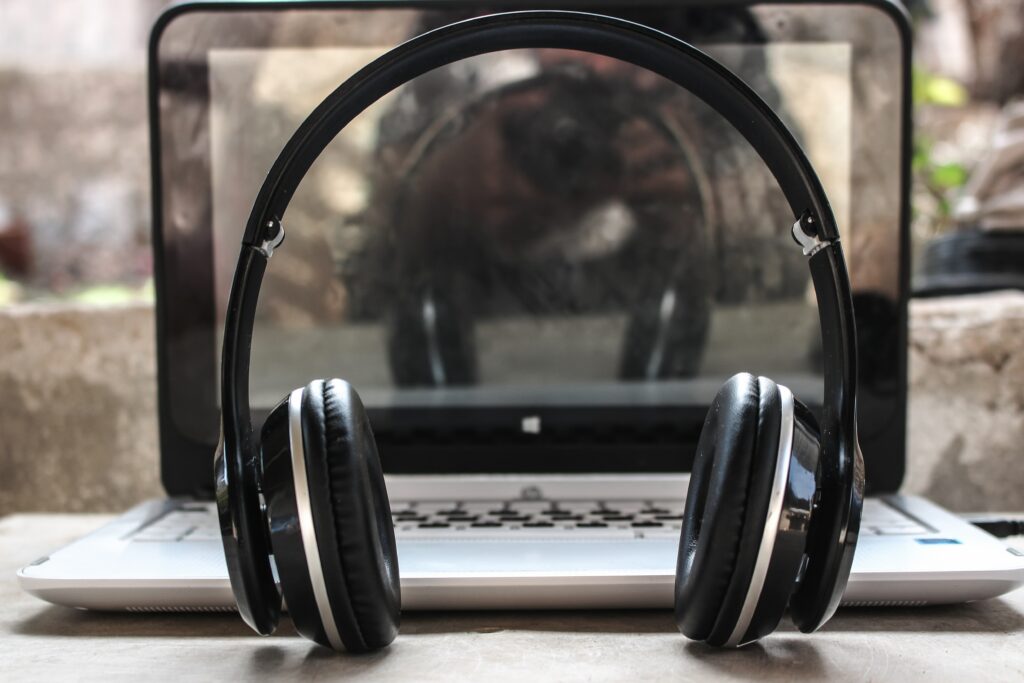
Introduction
Looking for a way to use your Sony Bluetooth headphones with your laptop? This guide shows how to connect Sony Bluetooth headphones to a laptop so you can enjoy your music, movies, and games on the go. It also covers a few tips for getting the best sound quality from your headphones.
What You Need
- A pair of Sony Bluetooth headphones
- A laptop with Bluetooth support
- The instruction manual that came with your headphones
How to connect Sony Bluetooth headphones to laptop
Three short steps are enough: enable the Bluetooth function on your laptop, put the headphones into pairing mode, then add them to your computer from the Bluetooth settings panel.
Step One: Turn On the Bluetooth Function on Your Laptop
Open the Bluetooth section in your laptop's system settings and make sure the Bluetooth toggle is switched on. On a Windows machine this lives in Settings under Devices, while macOS users will find the Bluetooth switch in System Preferences or the Control Centre.
Step Two: Put Your Sony Bluetooth Headphones Into Pairing Mode
Press and hold the power button on your headphones until the indicator light starts flashing. A flashing light usually means the headphones are now discoverable and searching for a device to pair with. If they do not pair the first time, consult the instruction manual for the exact combination of buttons your model uses.
Step Three: Add Your Sony Bluetooth Headphones to Your Laptop
With pairing mode active, return to the Bluetooth list on your laptop and choose your Sony headphones from the available devices. Once connected, select them as the output device and start playing audio.
Some models need their drivers installed on the machine before the laptop will list them as an available Bluetooth device.
Quick Reference
| Step | What to do | Expected result |
|---|---|---|
| One | Turn on the Bluetooth function on your laptop | Bluetooth toggle shows as active in system settings |
| Two | Put the Sony headphones into pairing mode | Indicator light flashes; headphones become discoverable |
| Three | Add the headphones to your laptop | The device appears in the Bluetooth list and connects |
Conclusion
With Bluetooth switched on, pairing mode engaged, and the headphones added to your laptop, you are ready to enjoy music, films, and games wirelessly. If the device fails to appear, confirm that pairing mode is still active and check the instruction manual for model-specific instructions.
Tips for the best sound quality
- Keep the headphones close to the laptop while the first connection is made.
- Use the instruction manual to confirm which button combination starts pairing on your model.
- Reconnect through the Bluetooth settings panel if audio drops out after moving between rooms.
Architecture and interior design share a common thread with everyday technology: both depend on how thoughtfully people inhabit their spaces. A workspace that responds to light, acoustics, and circulation feels calmer than one that ignores them, and the same idea applies to the devices we carry into those rooms. This site collects studies, insights, and project stories that explore how architecture, renovation, restoration, and consulting work together to shape functional, welcoming environments for homeowners, commercial clients, and developers alike.
Alongside that architectural focus, the blog carries practical guides that help readers make the most of the tools they use every day, from wireless audio to project management workflows. The Sony Bluetooth headphones guide walks through pairing a headset with a laptop step by step, covering sound quality and setup so music, movies, and games can be enjoyed wirelessly. Like the broader catalogue of resources on the platform, it reflects a continuous effort to merge creativity with functionality and to share knowledge that saves people time in their daily routines.